Trends across nights
Follow one metric, or two together, across every night you have recorded.
Updated 2026-10-22
The Trends tab plots one metric per night across all your recordings, so you can see how it moves over weeks.
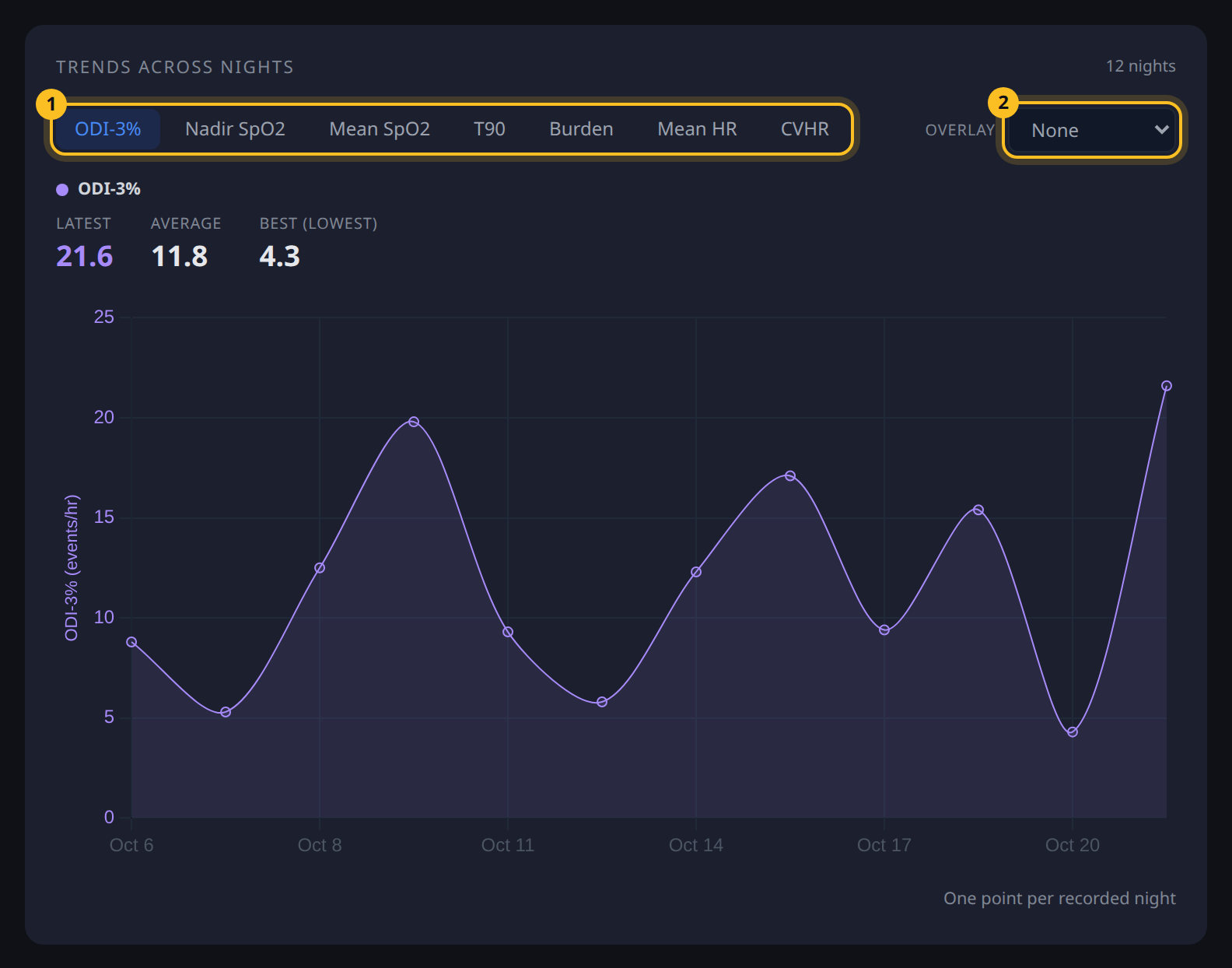
- Metric - the figure to plot.
- Overlay - a second figure drawn on the same chart.
Follow a metric
- Open the Trends tab.
- Pick a metric (1): ODI-3%, Nadir SpO2, Mean SpO2, T90, Burden, Mean HR or CVHR.
- To compare two, choose a second one under Overlay (2). Set Overlay back to None to remove it.
Above the chart you'll see the Latest night, the Average across all nights and the Best night for each metric shown. Hover over or tap a point to see that night's value.
It needs at least 2 recorded nights to draw a trend.
Use event tags and notes to record what changed, then come back here to see whether the line moved.
What each metric means is in overnight analysis metrics.