Notes and time markers
Write a note for a night and mark moments or spans on its chart.
Updated 2026-10-22
Each night has a free-text note and any number of time markers. Use them to record what happened, so you can line it up with the chart later.
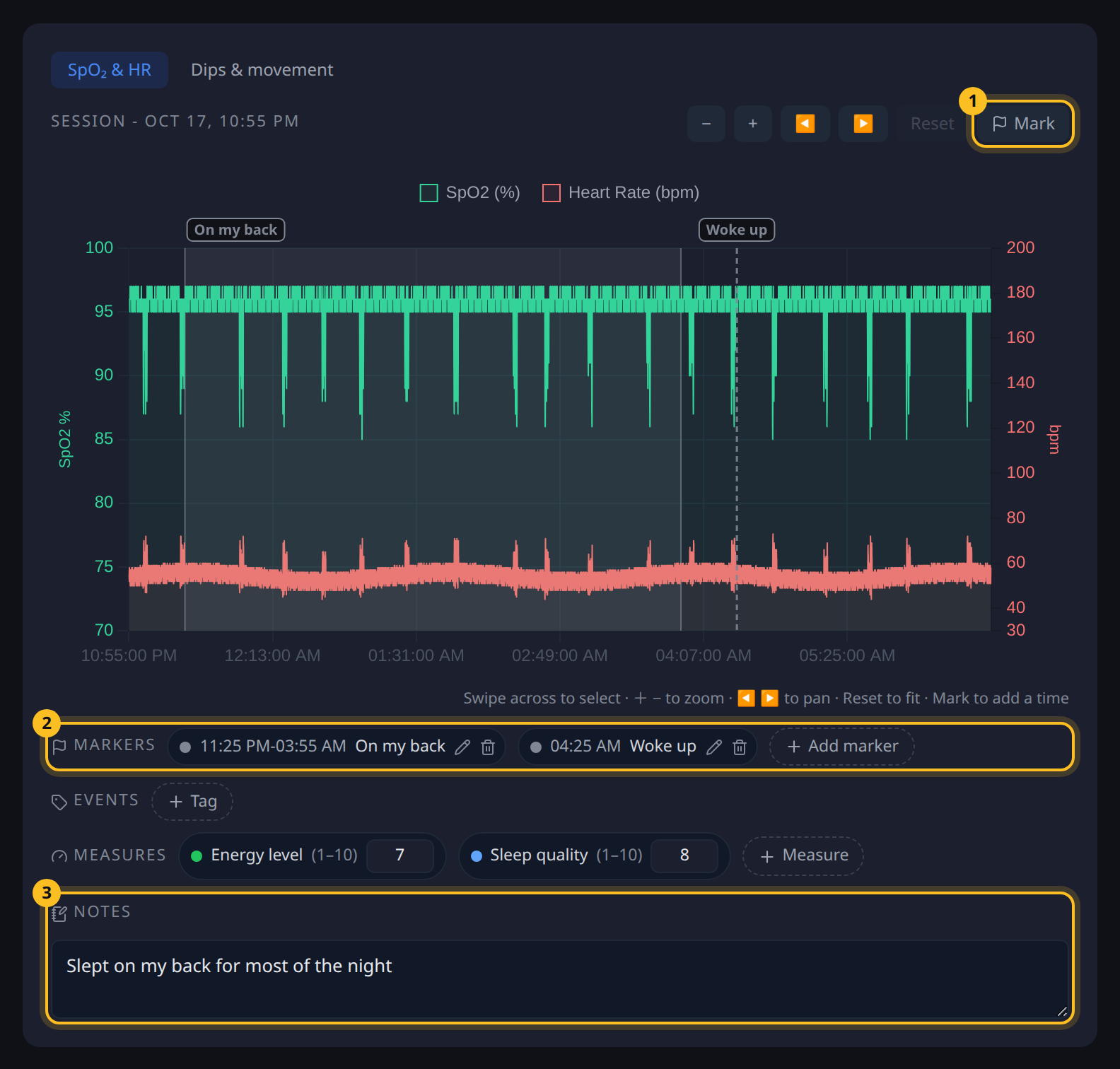
- Mark - turns on marking, so a tap or swipe on the chart adds a marker.
- Markers - every marker for the night, with + Add marker to type the times.
- Notes - the night's note.
Write a note
- Open a night in Sessions.
- Type in the Notes box (3) under the chart, for example "Late dinner, slept on my back".
- The note saves as you type and shows Saved.
You can also edit a night's note from the pencil button on its session card. Notes appear on the session card and in the Nights tab.
Mark a time on the chart
- Press Mark (1) above the chart.
- Tap the chart for a single moment, or swipe across it for a span of time.
- Type a label, for example "Woke up" or "On my back".
- Optionally pick one of your events under Event colour to colour the marker.
- Press Save.
Press Mark again or Esc to stop marking. While marking is off, swiping across the chart zooms in as usual.
To type the times instead, press + Add marker under the chart. Tick Span of time to add an end time.
Read markers on the chart
- A moment shows as a dashed line.
- A span shows as a shaded band.
- Labels sit in a strip above the plot. When labels are close together they merge, for example "Bathroom +3".
The Markers list (2) under the chart shows every marker for the night. Click a marker to zoom the chart to it, or use its pencil and bin buttons to edit or delete it.
Note, marker or event?
- Note - anything about the whole night that you only need to read back.
- Marker - something that happened at a particular time.
- Event tag - a habit you repeat across nights and want to compare, such as "Alcohol". Only events feed the impact analysis.
Mark when you woke or changed position, then zoom in to see what your SpO₂ and heart rate were doing at that time.