Scoring nights with measures
Give each night a number, such as energy level, and see how it relates to your metrics.
Updated 2026-10-22
A measure is a number you record once per night, such as "Energy level" from 1 to 10 or "Sleep quality". Unlike an event tag, a measure shows on every night as a box to fill in.
Add a measure
- Open a night in Sessions.
- Press + Measure under the chart.
- Type a name under New measure, for example "Energy level".
- Optionally add a unit, for example "1–10".
- Press Add.
The measure now shows on every night.
Score a night
- Open the night in Sessions.
- Type a number in the box next to the measure.
- Press Enter or click away to save it.
Clear the box to remove that night's score. You can also score a night straight after a sync, or from the pencil button on its session card.
See how a measure relates to your metrics
- Open the Impact tab.
- Choose Measure correlation.
- Pick a measure (1), then a metric such as ODI-3% or mean HR (2).
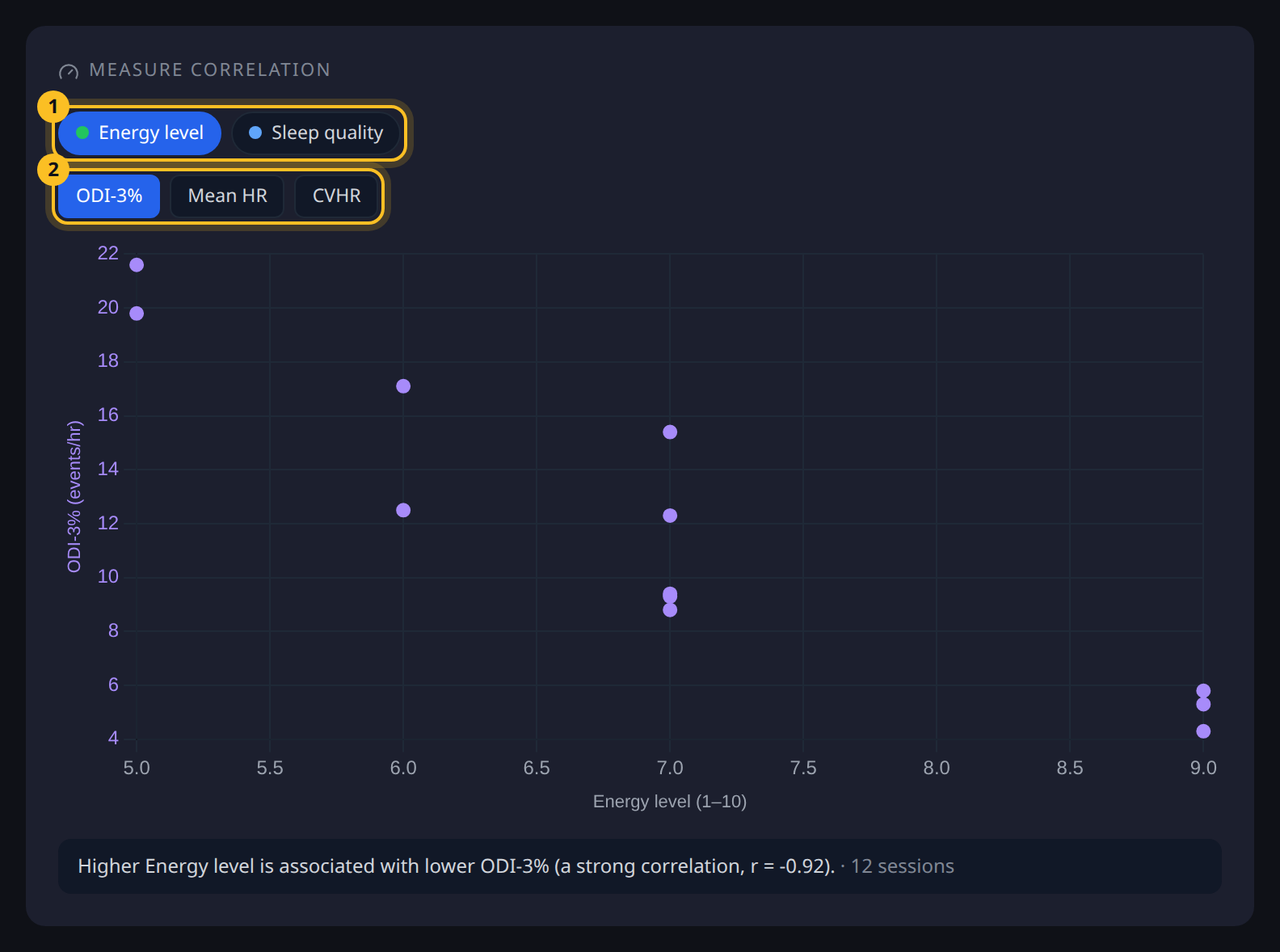
- Measures - pick the measure to analyse.
- Metric - the figure on the vertical axis.
The scatter plot shows one dot per scored night. The line under it describes the direction and strength of the correlation, with its r value.
A correlation across your own nights is an association, not proof of cause. Score at least a week of nights before reading much into it.